Newsletter
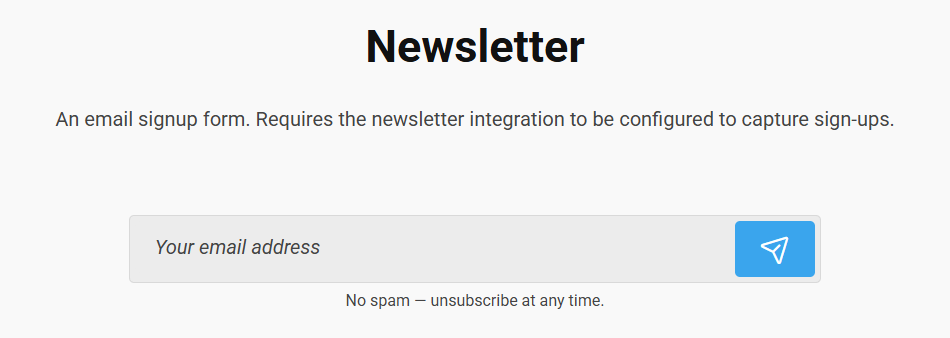
The Newsletter block shows an email signup form that adds subscribers to your mailing list. The list is configured in the site's general settings, and can be overridden per block.
Sign-ups only work once the newsletter/subscriber integration has been set up in the general settings. The Subscriber List ID below lets a single block target a different list.
Providers
Campaign Monitor
Under General -> Settings and the Newsletter section you will need to enter an API Key and a Default Subscriber List ID. Once this is set up add the Newsletter content widget.
Mailchimp
Under General -> Settings and the Newsletter section you will need to enter a API Key and a Default Subscriber List ID. Once this is set up add the Newsletter content widget.
Content
| Property | Description |
|---|---|
| Placeholder Text | Help text shown inside the email field. |
| Small Text | A small line of text shown beneath the signup form (e.g. privacy note). |
| Subscriber List ID | Overrides the default Subscriber List ID set in General Settings, so this block signs people up to a specific list. |
| Submit Button Palette | The style of the submit button, chosen from the theme's button variants. |
Settings
The Newsletter block has no settings of its own. It uses the shared common settings and the column span chosen in the grid.
Extending: custom email providers
This section is for developers adding support for an email marketing service that isn't built in. Igloo ships with Mailchimp and Campaign Monitor.
Newsletter sign-ups are handled by a small provider model in the Igloo.EmailMarketing namespace:
IEmailProvider— talks to a specific email service and performs the actual subscribe.IEmailProviderFactory— declares a provider by name and creates anIEmailProviderfor a given API key.
How a sign-up is resolved
When the form is submitted, IglooNewsletterController reads the provider name and API key from General → Settings → Newsletter, then asks the registry to resolve a provider:
IEmailProviderRegistry.Resolve(providerName, apiKey)looks up a registeredIEmailProviderFactorywhoseProviderNamematches the configured provider (case-insensitive).- It calls
factory.Create(apiKey)to get anIEmailProvider. IEmailProvider.SubscribeAsync(request, ct)performs the sign-up and returns aSubscribeResult.
All registered factories are discovered automatically via dependency injection, so adding a provider is just a matter of implementing the two interfaces and registering the factory.
The factory's ProviderName must match the value chosen in the Newsletter provider setting (matching is case-insensitive). If no factory matches, the registry throws NotSupportedException and the sign-up returns a configuration error.
The interfaces and models
public interface IEmailProviderFactory
{
    string ProviderName { get; }
    IEmailProvider Create(string apiKey);
}

public interface IEmailProvider
{
    string ProviderName { get; }
    Task<SubscribeResult> SubscribeAsync(SubscribeRequest request, CancellationToken ct = default);
}

public record SubscribeRequest(int PageId, string Email, string ListId);
public record SubscribeResult(bool Success, string Message);
Adding a new provider
1. Implement the provider and its factory. The factory is resolved once and is given the API key (from settings) each time it creates a provider — keep per-request state (like the API key) on the provider, not the factory.
using Igloo.EmailMarketing.Interfaces;
using Igloo.EmailMarketing.Models;

public class MyProviderFactory(IHttpClientFactory httpClientFactory) : IEmailProviderFactory
{
    public string ProviderName => "myprovider";

    public IEmailProvider Create(string apiKey) =>
        new MyProvider(httpClientFactory.CreateClient(ProviderName), apiKey);
}

public class MyProvider(HttpClient httpClient, string apiKey) : IEmailProvider
{
    public string ProviderName => "myprovider";

    public async Task<SubscribeResult> SubscribeAsync(SubscribeRequest request, CancellationToken ct = default)
    {
        // request.Email   – the subscriber's email
        // request.ListId  – the (per-block or default) Subscriber List ID
        // request.PageId  – the page the form was submitted from
        // Use apiKey to call your service's API...

        // Return success or a friendly failure reason:
        return new SubscribeResult(true, "Subscribed successfully");
    }
}
2. Register the factory in a composer (or Program.cs). The registry injects IEnumerable<IEmailProviderFactory>, so every registered factory is picked up automatically:
public class MyEmailProviderComposer : IComposer
{
    public void Compose(IUmbracoBuilder builder)
    {
        builder.Services.AddSingleton<IEmailProviderFactory, MyProviderFactory>();
    }
}
3. Add Provider to data type in Igloo - Newsletter Email Marketing Provider - Radio Buttons add the ProviderName to the list so the option appears in the backoffice.
4. Select the provider. In General → Settings → Newsletter, set the provider to myprovider (the same value as ProviderName) and enter its API key. The Newsletter block will now route sign-ups through your provider.