Hero with a guttered section below
A common page opener is a full-width hero banner with a normal, guttered band of content underneath. In v13 that band came for free from the grid. In v17 the hero spans the full width of the page, and your content only pulls into the page gutter once you put it inside a Section. Skip the Section and the text ends up flush against the screen edges, or you can't drop it where you expect.
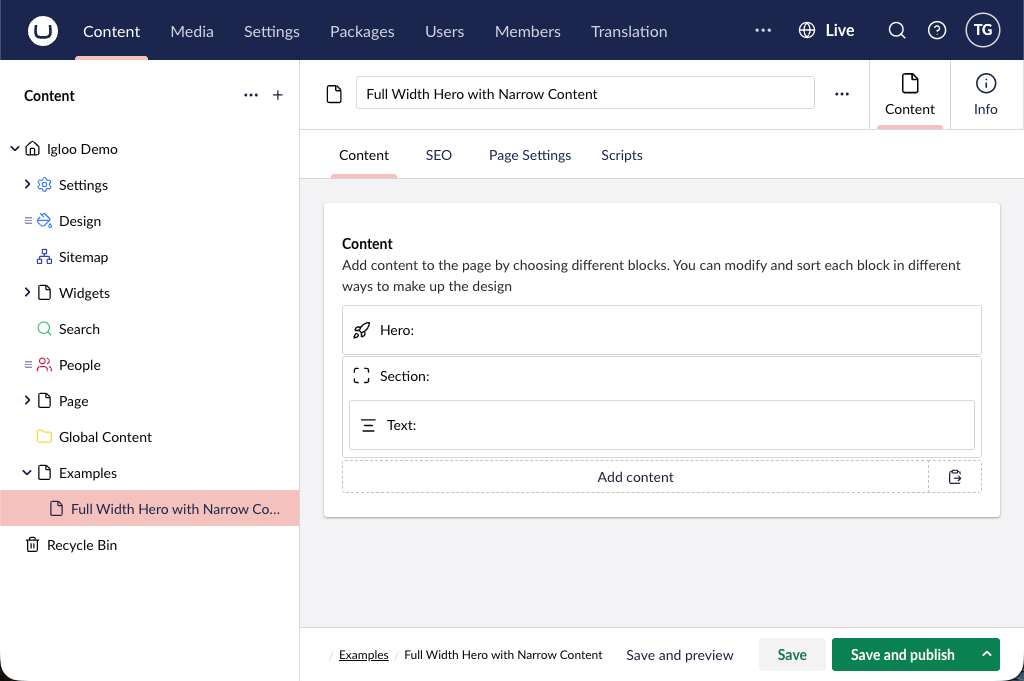
So the order is: add the Hero, add a Section below it, then put your content inside the Section.
You can see the finished result on the Igloo demo site.
1. Add the Hero
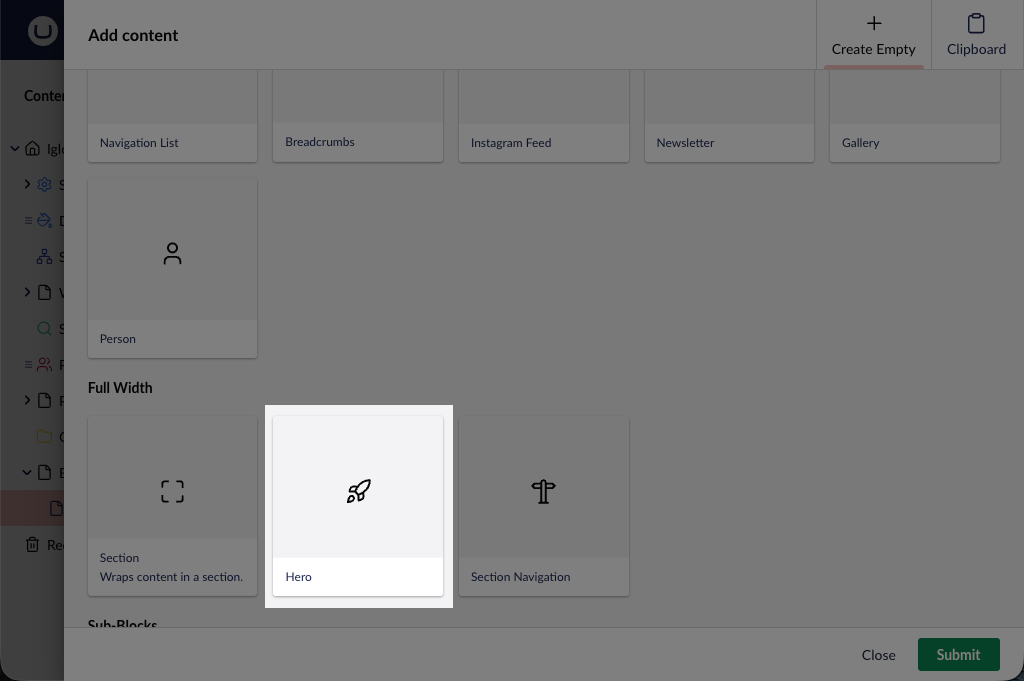
On a new page, open the block picker from the Content area. Hero, Section and Section Navigation all live together under the Full Width group, so scroll down to find them. Pick Hero.
The Hero now sits at the top of the page. Set its heading, background and buttons from the Hero reference when you're ready.
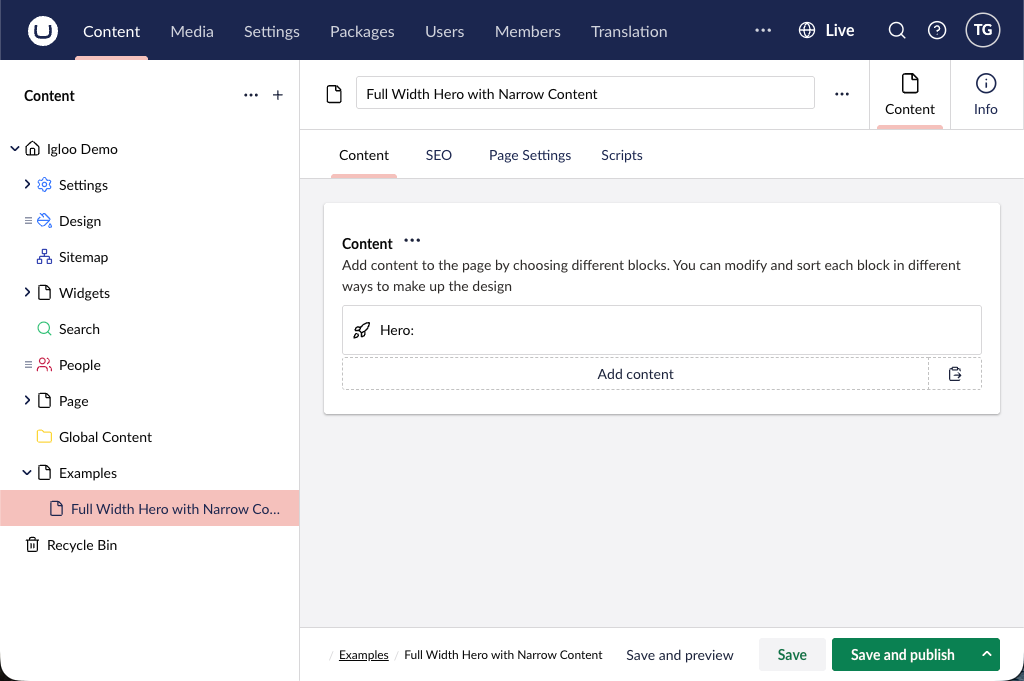
2. Add a Section below it
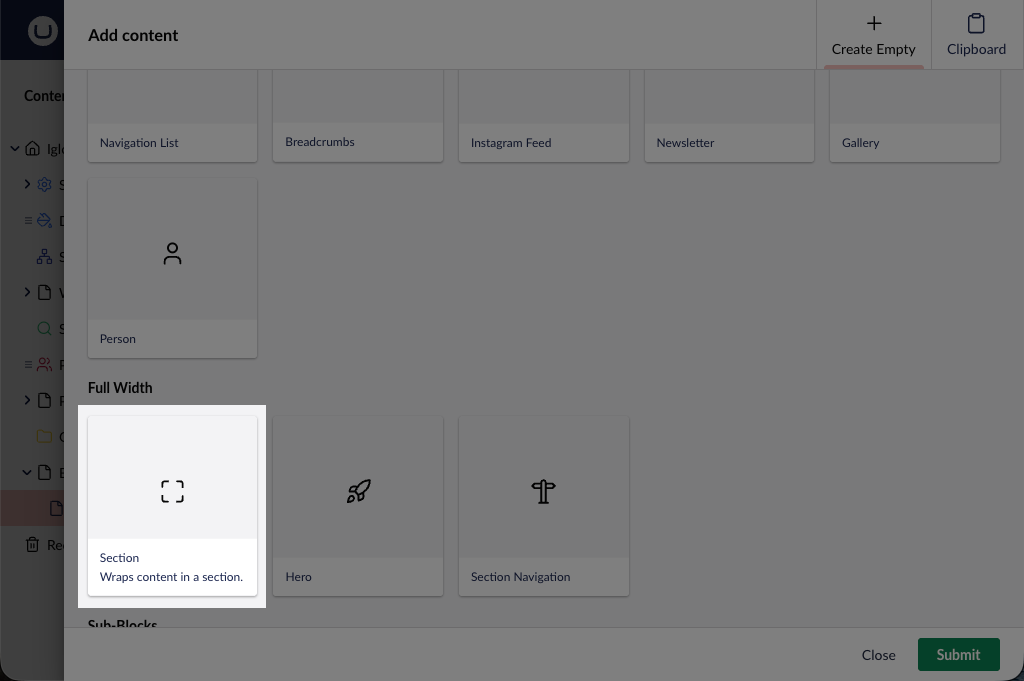
Open the picker again and, from the same Full Width group, choose Section. This is the step that catches people out, since in v13 you wouldn't have needed it.
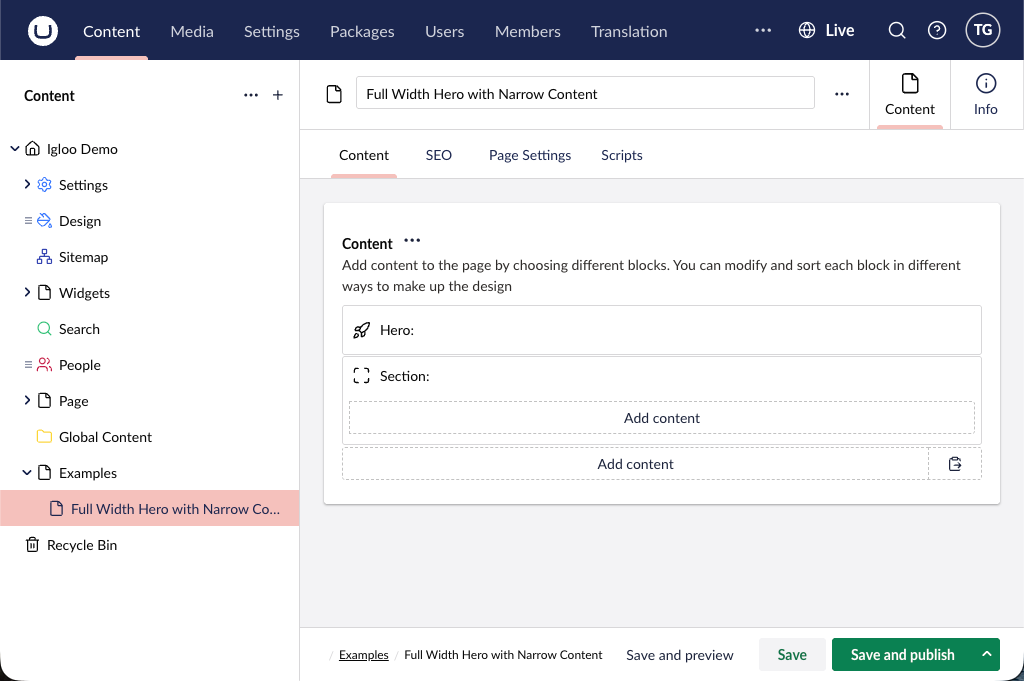
The Section drops in below the Hero. It looks empty for now, because a Section is a container for other blocks rather than content in its own right.
3. Set the Section's width and palette
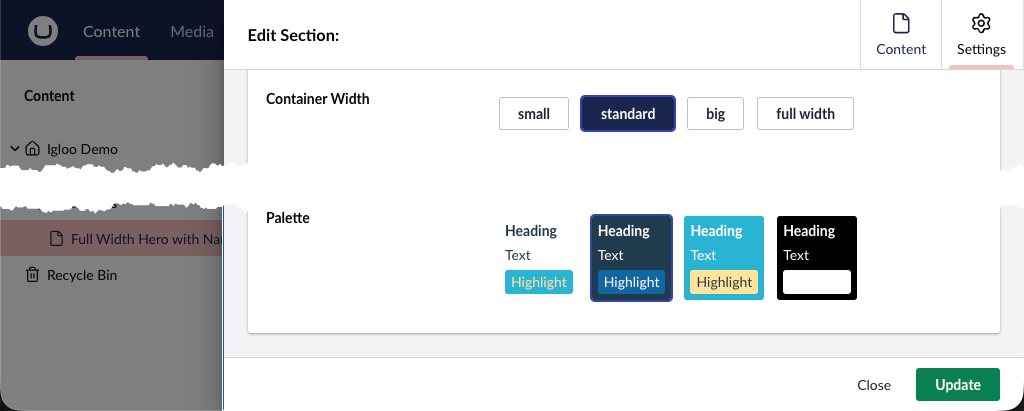
Open the Section's settings. Container Width controls how wide the contained band is:
- Standard gives the usual guttered band.
- Small narrows it further for a tighter column of text.
- Full width removes the gutter again, which is the option people pick by mistake.
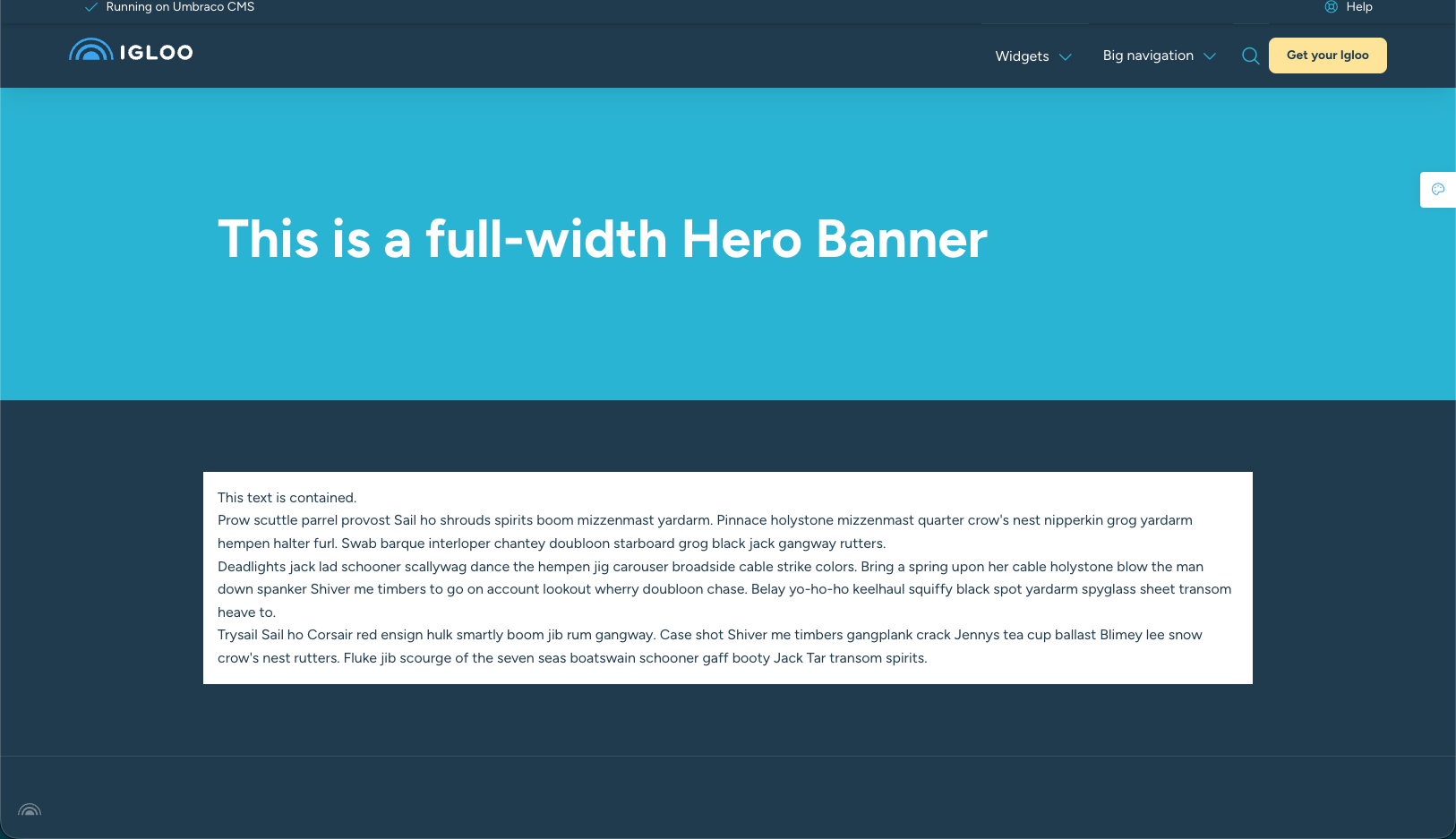
You can also choose a Palette here. Pick a different one from the rest of the page and the band stands out more clearly, which is how the demo gets its dark band behind the text.
4. Add your content inside the Section
Now add a Text block (or anything else) inside the Section. It lays out on the 12-column grid within the Section, so it picks up the gutter and sits beside any other blocks you add as columns.
Result
Full-width hero up top, a tidy guttered band of content below.
Narrow content
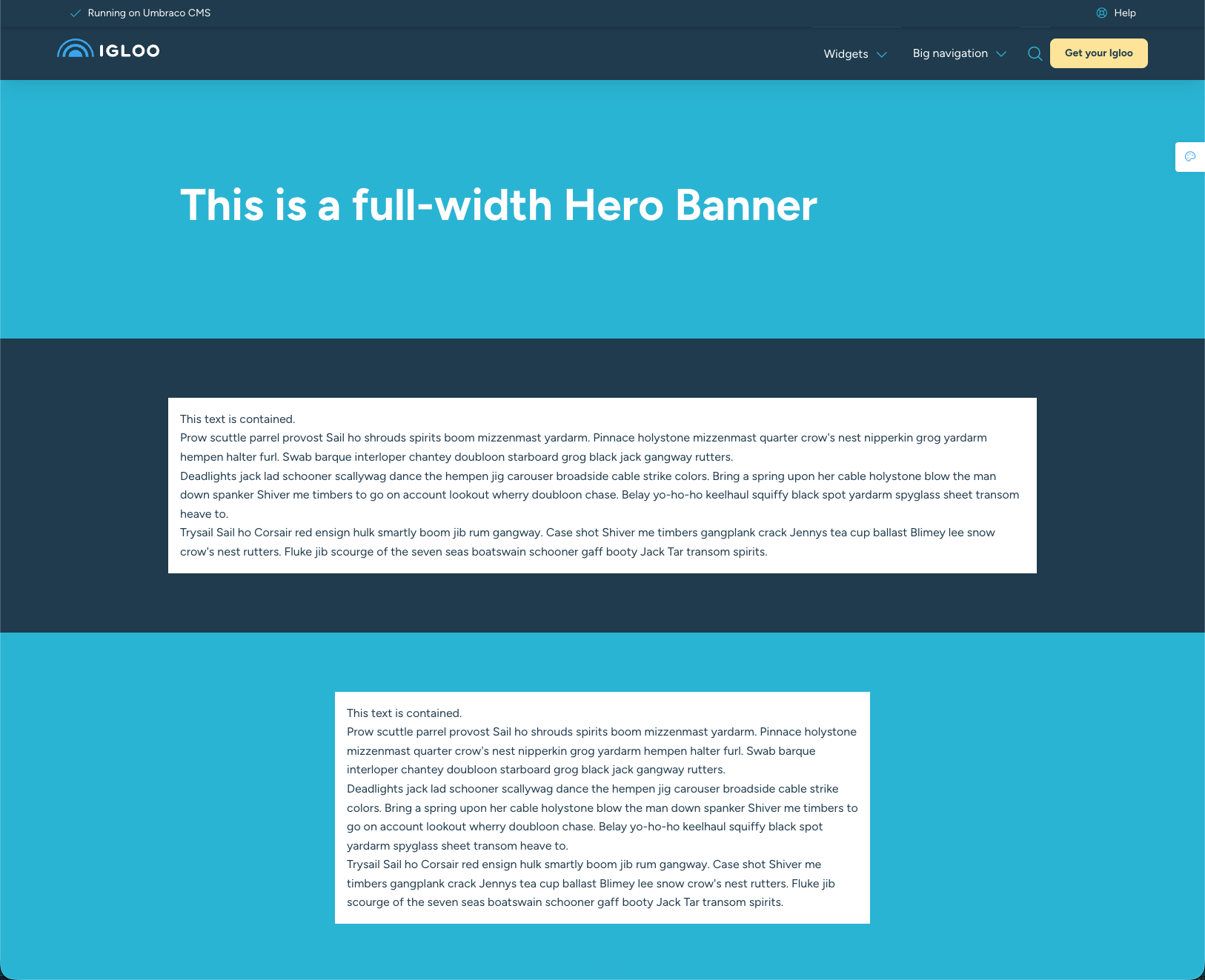
Want the tighter column from the demo? Add another Section, set its Container Width to Small, and the text pulls in further than the standard band above it. Stacking Sections like this is how you build a page band by band.
Related
- Block Grid overview — how blocks, Full Width blocks and columns fit together.
- Section — every Section setting, including Compact and Remove Gutter.
- Hero — the full set of hero controls.