Adding custom JavaScript (Google Analytics, Tag Manager and more)
Most third-party tools — Google Analytics, Google Tag Manager, a cookie consent banner, a Meta Pixel — ask you to drop a snippet of code somewhere in your page's <head> or <body>. In v17 you don't touch any templates to do that. You add the snippet once from Settings, and it renders on every page of the site.
The steps below are the same whatever you're adding. The only thing that changes is which box you paste the code into, because each provider tells you where its snippet belongs (top of the head, straight after the opening body tag, or near the end of the body).
Scripts added here run on every page and can load third-party resources, collect data and change how the site behaves. Make sure the snippet comes from a trusted provider and that any tracking it does is covered by your cookie and privacy policy. See Site Scripts for the full rundown.
1. Open the Scripts tab
In the Content tree, go to Settings → General, then open the Scripts tab across the top. You'll see a single panel headed Scripts — List of scripts that will get rendered on all pages.
Click Add Site Script - Custom.
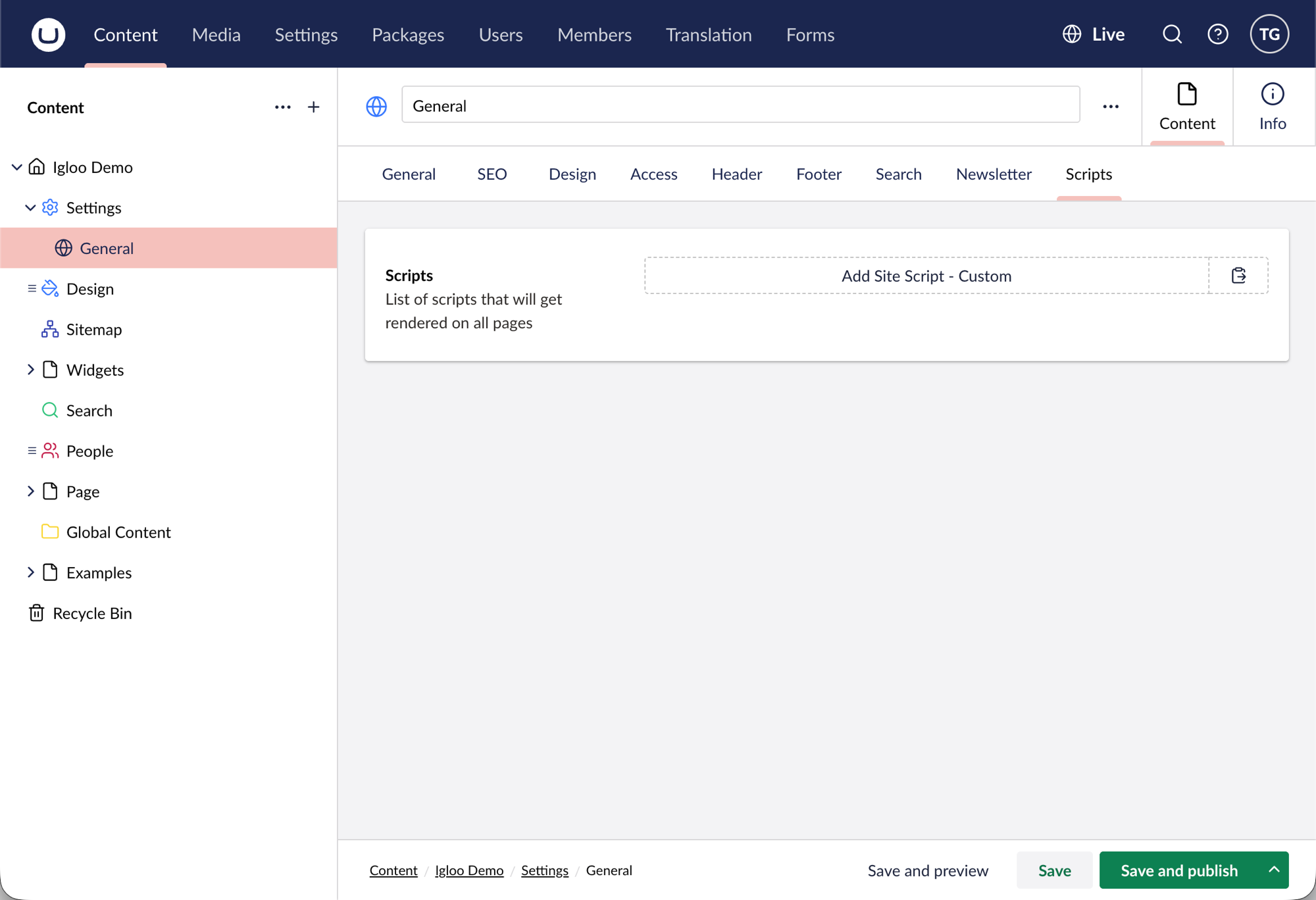
2. Choose Site Script - Custom
An Add content panel slides in. Pick Site Script - Custom and click Submit.
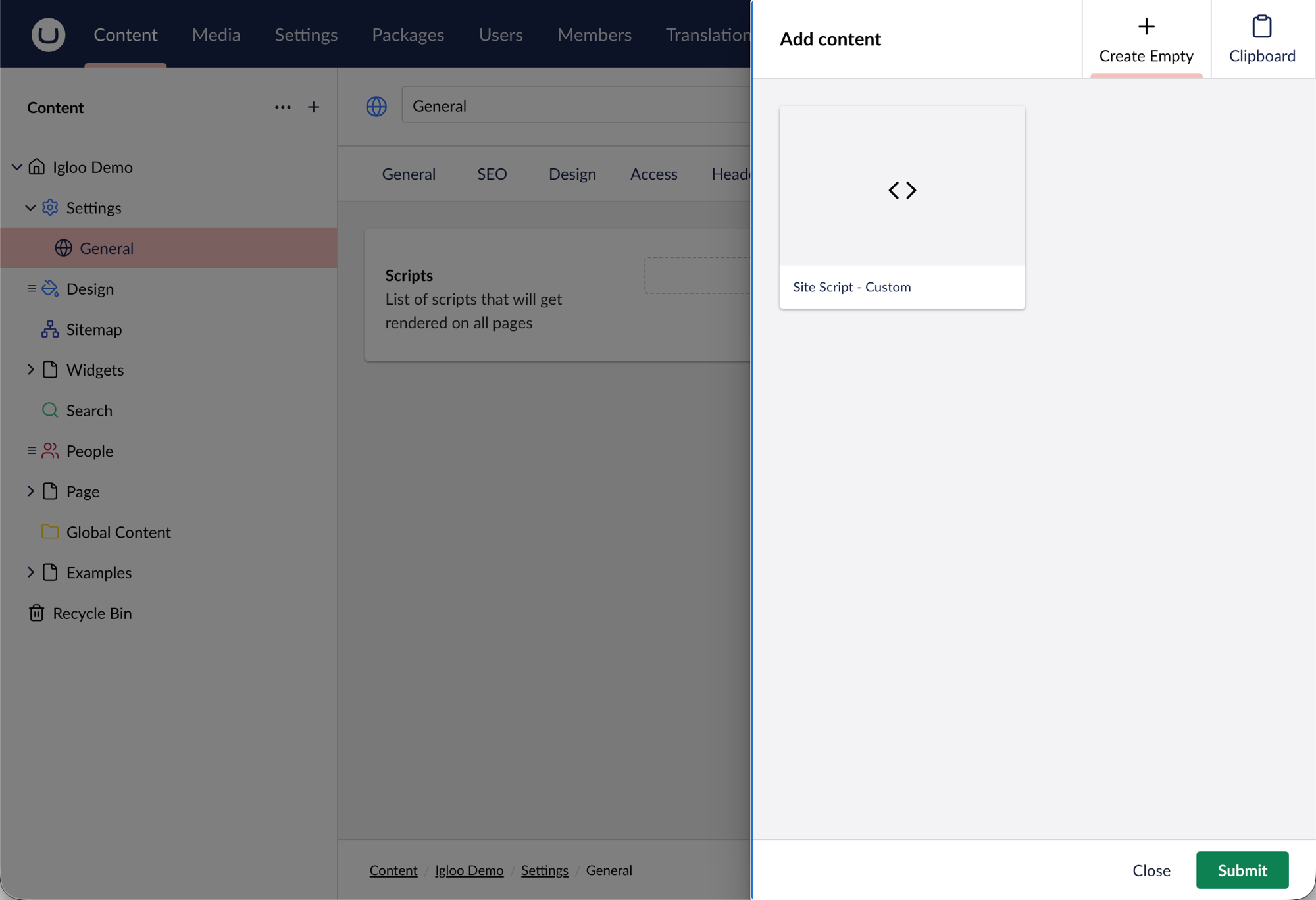
3. Name it and paste your code
Now you get the Add Script form. Give it a Script Name you'll recognise later — something like Google Analytics or Google Tag Manager — then paste your snippet into the box that matches where the provider says it should go:
- Head Bottom Script — renders near the end of the
<head>. This is where most analytics and tag snippets go, including the main Google Analytics (GA4) and Google Tag Manager tags. - Body Top Script — renders immediately after the opening
<body>. Google Tag Manager's<noscript>fallback goes here. - Body Bottom Script — renders near the end of the
<body>. Use it for scripts that should load last, after the page content.
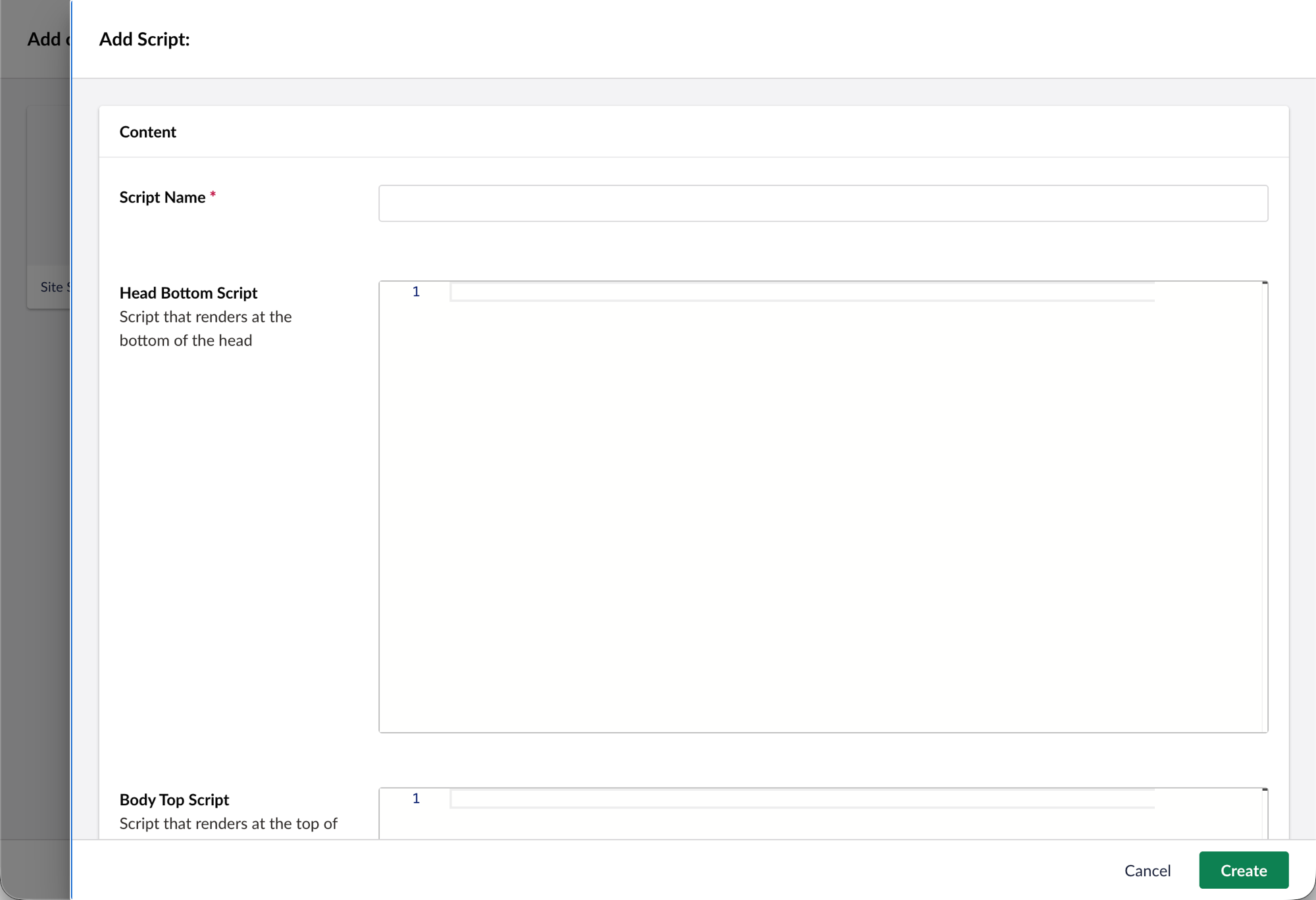
You only need to fill the boxes your provider mentions — leave the rest empty. Google Tag Manager, for example, gives you two snippets: the main one goes in Head Bottom and the <noscript> one goes in Body Top. Google Analytics gives you a single snippet that goes in Head Bottom.
Click Create when you're done.
4. Save and publish
Back on the Scripts tab your new script now appears in the list. Click Save and publish at the bottom of the page and the script goes live across every page on the site.
To check it's working, open the live site and view the page source (or use your provider's own verification — Google's Tag Assistant, the GA4 real-time report, and so on).
Adding more than one
Repeat the steps for each tool you want to add — one script entry per provider keeps things tidy and easy to remove later. They'll all render together in the order they appear in the list.
Need it on just one page?
Every page also has its own Scripts tab that works exactly the same way, for snippets you only want on that one page (a campaign pixel, a booking widget). You can even switch the global scripts off for a specific page. See Site Scripts for that.
Related
- Site Scripts — the full reference, including page-specific scripts, output order and the developer API.
- Common Issues — if something isn't rendering as expected.