Site Scripts
The Site Scripts feature allows scripts to be added to a site from the CMS, either globally across the whole site or on individual pages. This is useful for adding things like analytics, tracking pixels, marketing tags, third-party embeds, or custom page-specific scripts without needing to edit templates directly.
Important: Only add scripts from trusted sources.
Scripts added through this feature are rendered directly into the page. This means they can affect site behaviour, collect data, load third-party resources, or interact with page content.
Before adding a script, make sure that:
- the script comes from a trusted provider;
- the script is required for the site or page;
- the script complies with privacy and cookie consent requirements;
- any tracking scripts are covered by the site’s cookie/privacy policy;
- the script has been tested before being added to production.
Avoid pasting scripts from unknown sources.
Global Site Scripts
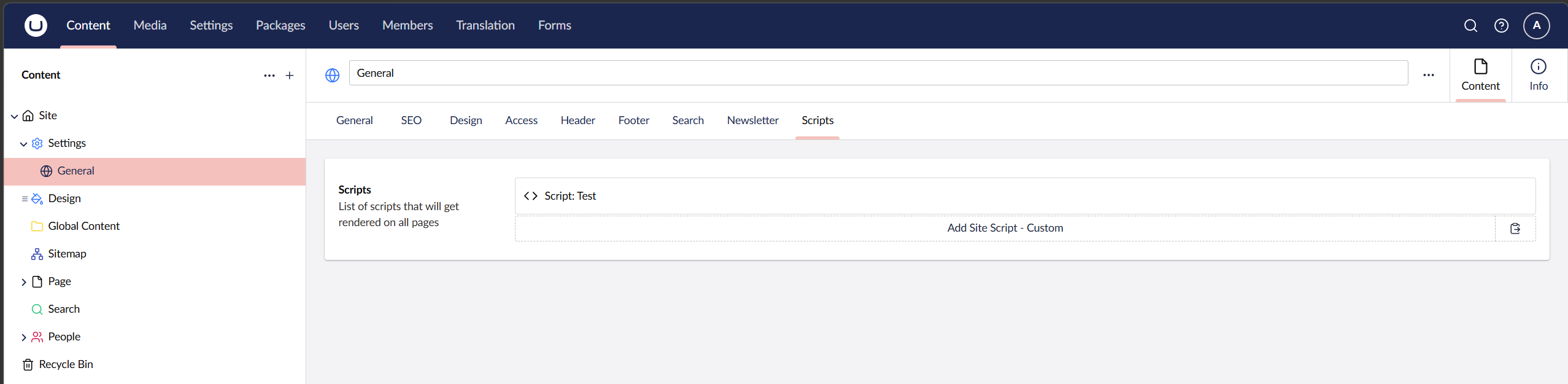
Global scripts are configured from: Settings → General → Scripts
Scripts added here are output across the site by default. Use global scripts for code that should appear on most or all pages, such as:
- Google Analytics
- Google Tag Manager
- Cookie consent scripts
- Meta/Facebook Pixel
- Site-wide tracking or marketing tools
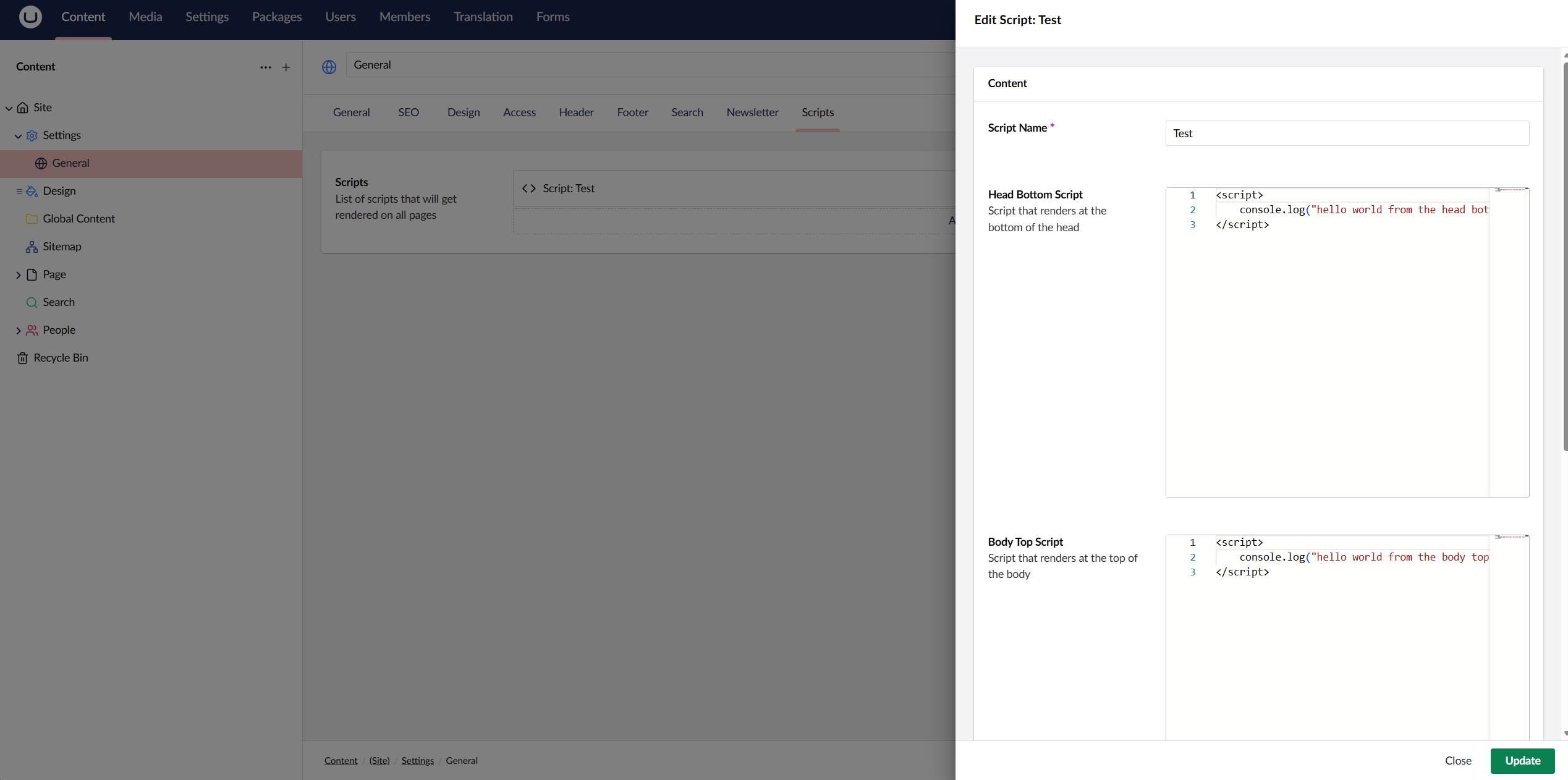
Each script can define output for one or more script positions.
- Head Bottom — rendered near the end of the
<head> - Body Top — rendered immediately after the opening
<body> - Body Bottom — rendered near the end of the
<body>
Page-Specific Scripts
Each page also has its own Scripts tab.
Scripts added here are output only for that specific page. This is useful when a script is only needed in one place, for example:
- A third-party booking widget
- A campaign-specific tracking pixel
- A form embed
- A map or interactive tool
- Page-specific conversion tracking
Page scripts are rendered in addition to global scripts unless global scripts are disabled for that page.
Disabling Global Scripts on a Page
Pages can disable global scripts via the page settings.
This is useful when a page needs tighter control over what scripts are rendered, for example:
- landing pages with dedicated tracking
- privacy-sensitive pages
- pages that should avoid third-party scripts
- pages with conflicting embed scripts
When global scripts are disabled, only the scripts configured directly on that page will be rendered.
Script Output Order
Scripts are collected from two places:
Global scripts from Settings → General → Script Page-specific scripts from the current page’s Scripts tab
Global scripts are rendered first, followed by page-specific scripts.
If global scripts are disabled on the page, only page-specific scripts are rendered.
For Developers
The Site Scripts system is extensible. Developers can add new script block types by implementing IScriptDefinition.
This allows custom script models to be converted into rendered script output depending on where the script is being rendered.
How Script Definitions Work
Each script block has a content type alias.
When scripts are rendered, Igloo checks the available script definitions and looks for one where the definition alias matches the block’s content type alias. The matching script definition is then asked to return the script content for the requested position.
The interface is:
using Igloo.Models.Enums;
using Umbraco.Cms.Core.Models.PublishedContent;

namespace Igloo.Services.Interfaces;

public interface IScriptDefinition
{
    string Alias { get; }

    Task<string?> GetScriptAsync(IPublishedElement block, ScriptPositionType position);
}
Script Positions
The requested render position is passed to the script definition as a ScriptPositionType.
namespace Igloo.Models.Enums;

public enum ScriptPositionType
{
    HeadBottom = 1,
    BodyTop = 2,
    BodyBottom = 3
}
Your script definition can return different output depending on the position.
For example:
- return a
<script>block for HeadBottom; - return a
<noscript>fallback for BodyTop; - return nothing for BodyBottom.
If a script definition returns null or an empty value, nothing is rendered for that position.
Creating a Custom Script Definition
To add support for a custom script block:
- Create a element type "Analytics Script"
- Add the element to the
Igloo - Site Scripts - Block List - Create a class that implements
IScriptDefinition. - Add your "Analytics Script" to either a page or site scripts list.
Example:
using Igloo.Models.Enums;
using Igloo.Services.Interfaces;
using Umbraco.Cms.Core.Models.PublishedContent;

namespace MyProject.ScriptDefinitions;

public class AnalyticsScriptDefinition : IScriptDefinition
{
    public string Alias => "analyticsScript";

    public Task<string?> GetScriptAsync(IPublishedElement block, ScriptPositionType position)
    {
        if (position != ScriptPositionType.HeadBottom)
        {
            return Task.FromResult<string?>(null);
        }

        var trackingId = block.Value<string>("trackingId");

        if (string.IsNullOrWhiteSpace(trackingId))
        {
            return Task.FromResult<string?>(null);
        }

        var script = $"""
            <script>
                window.analyticsTrackingId = '{trackingId}';
            </script>
            """;

        return Task.FromResult<string?>(script);
    }
}
In this example:
- the definition handles blocks with the alias analyticsScript;
- it only outputs a script in the HeadBottom position;
- it reads a value from the script block;
- it returns HTML to be rendered on the page.
Registering a Script Definition
Custom script definitions need to be registered with dependency injection.
Example:
using Igloo.Services.Interfaces;
using MyProject.ScriptDefinitions;
using Umbraco.Cms.Core.Composing;
using Umbraco.Cms.Core.DependencyInjection;

namespace MyProject.Composers;

public class MyProjectComposer : IComposer
{
    public void Compose(IUmbracoBuilder builder)
    {
        builder.Services.AddTransient<IScriptDefinition, AnalyticsScriptDefinition>();
    }
}
Once registered, the script definition will be available to the Site Scripts system.
Rendering Site Scripts in Templates
Igloo renders scripts using the igloo-site-scripts tag helper.
Example:
<igloo-site-scripts position="HeadBottom"></igloo-site-scripts>
<igloo-site-scripts position="BodyTop"></igloo-site-scripts>
<igloo-site-scripts position="BodyBottom"></igloo-site-scripts>
These are typically placed in the site’s master layout.
The tag helper outputs the scripts for the current page and removes the custom tag from the rendered HTML.