Header and navigation
Navigation
Every piece of content you create directly under the Start page will automatically be added to the default navigation menu. If you have content items with sub-pages, these will be added as a dropdown in the menu.

Hide page from navigation
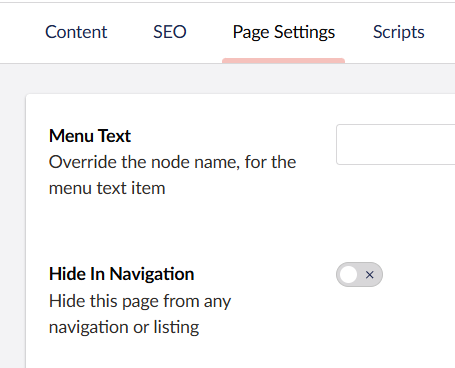
If you want to hide a page from the navigation go to the Page Settings section for that page and check Hide In Navigation option.
Custom Navigation
In some cases, you might want to make changes to the automatically created navigation menu. This can be done by using the Custom navigation feature.
Go to your General Settings node and click on the Header section.
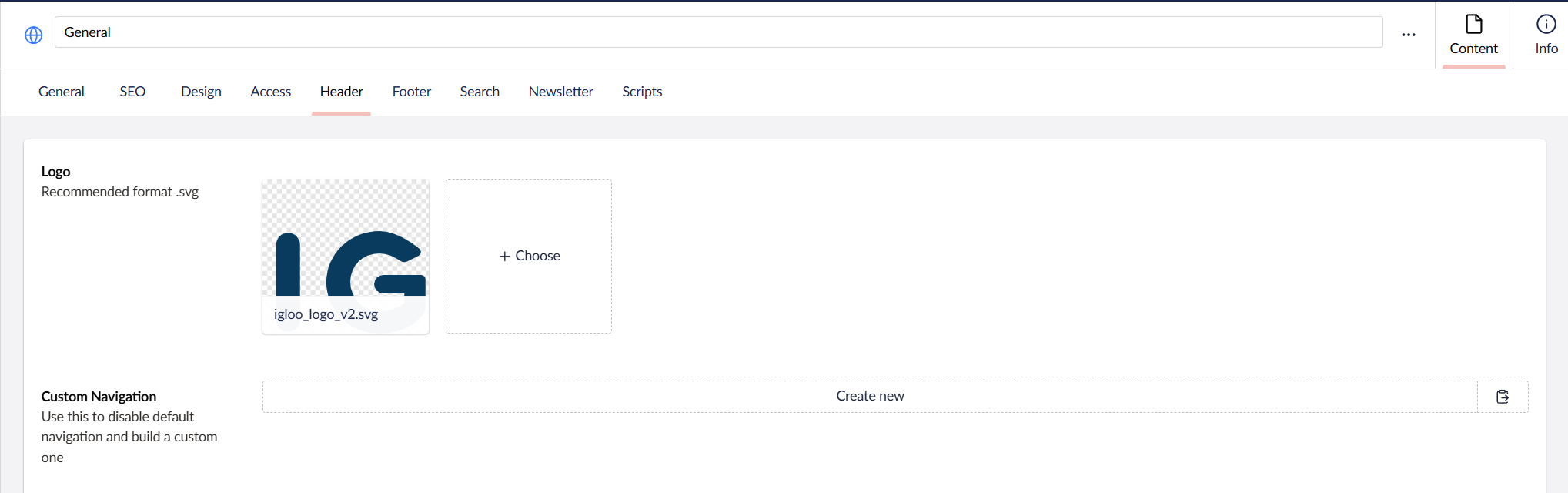
Here you can add two different types of Navigation items, Navigation Item and Big Navigation
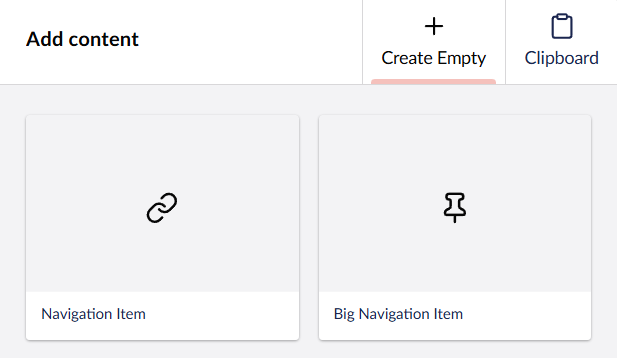
Navigation Item
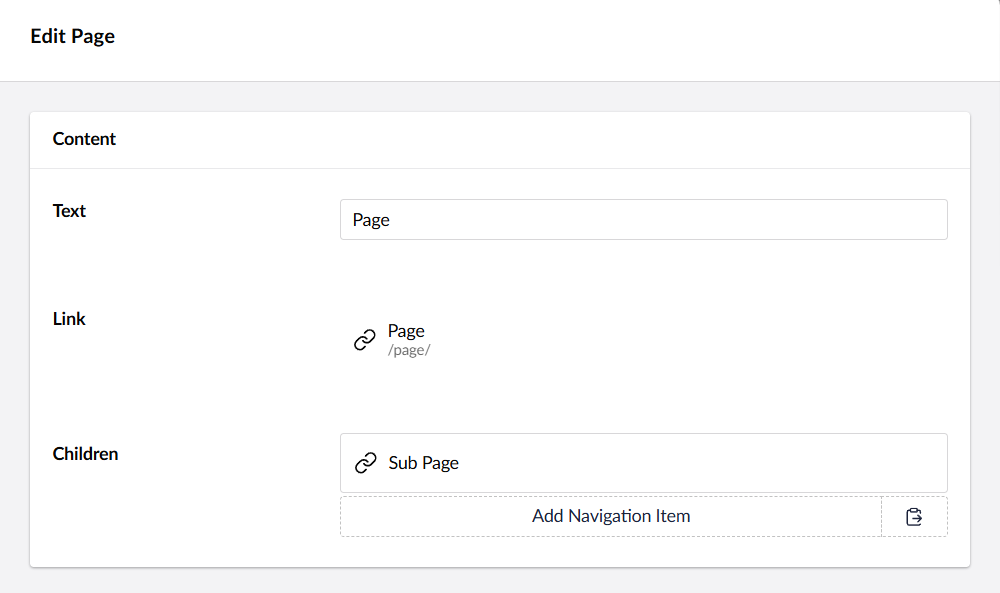
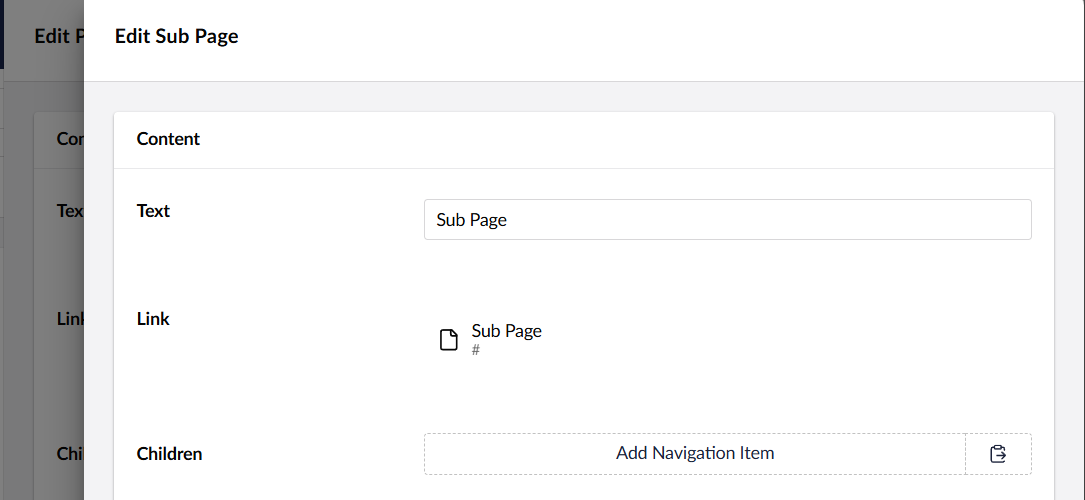
The navigation item looks like the default navigation, you can also nest navigation items to create a dropdown when hovering over the first navigation item.

Big Navigation
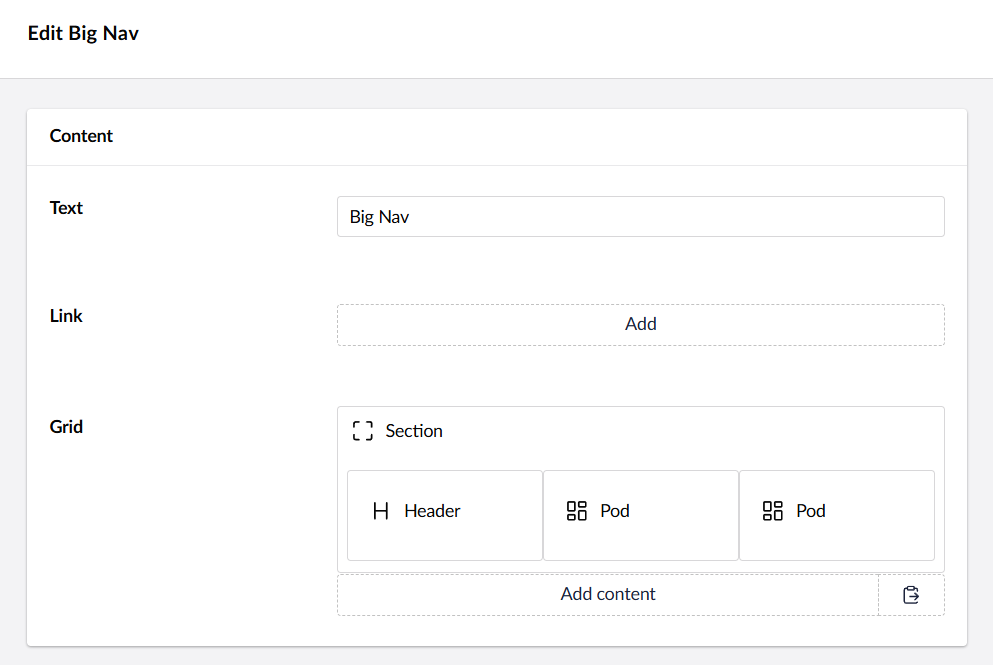
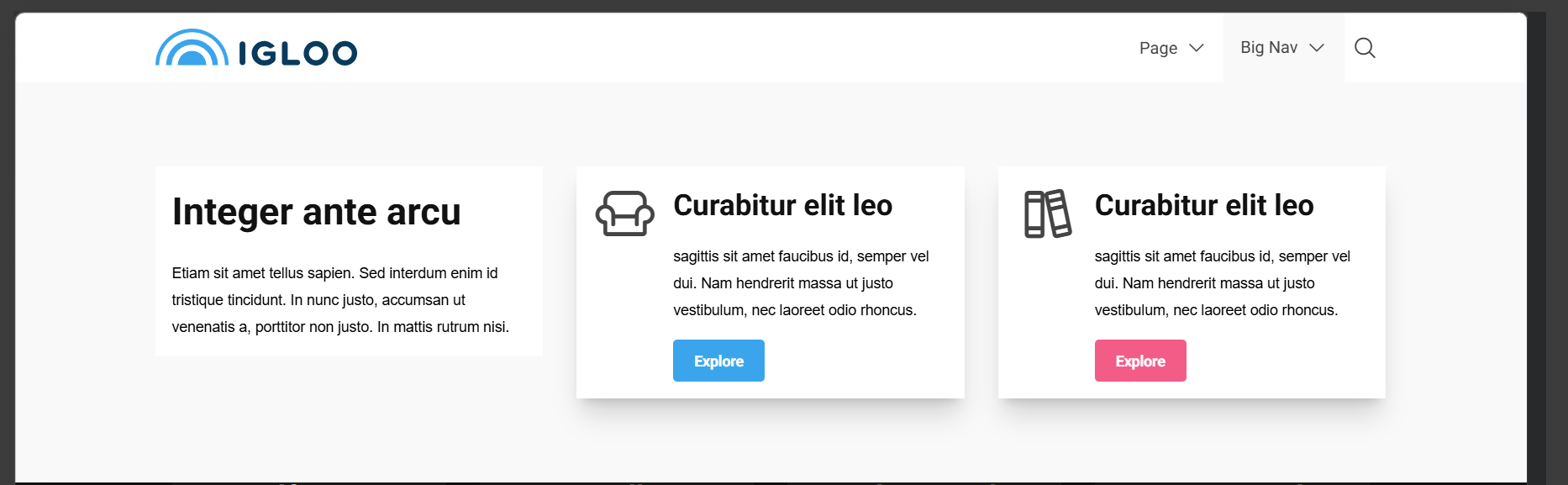
The big navigation allows you to use all widgets available in the Block Grid. The columns will be show when hovering over the the Big Navigation item.
NB: Unpublished Navigation items remain in the rendered Custom Navigation
When using the custom navigation you need to manually remove any items that you do not want to show if the associated link is unpublished.
The underlying functionality of Umbraco.Cms.Core.Models.Link returns null for both nothing selected or if the selected node is unpublished. (we don’t have a udi to be able to check isPublished)
Therefore we still have the item rendered in the navigation with # as the url.
Navigation Buttons
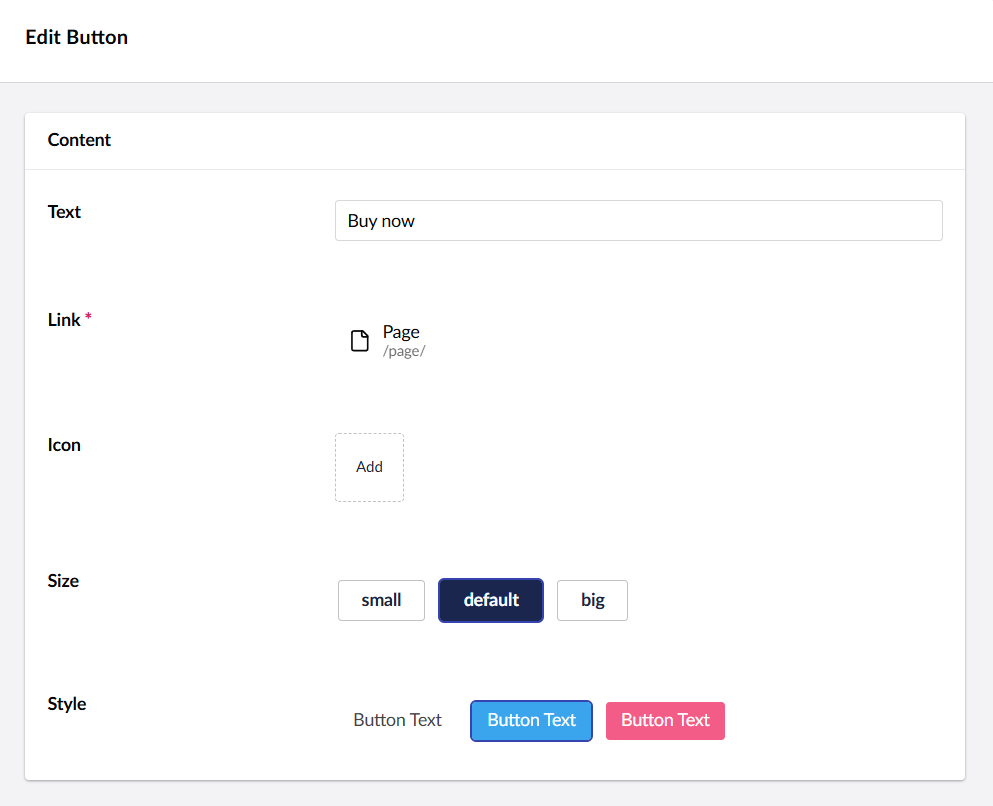
To add buttons to your navigation goto Header Call To Actions on the Header section. Here you can add one or more buttons.

Sub Header
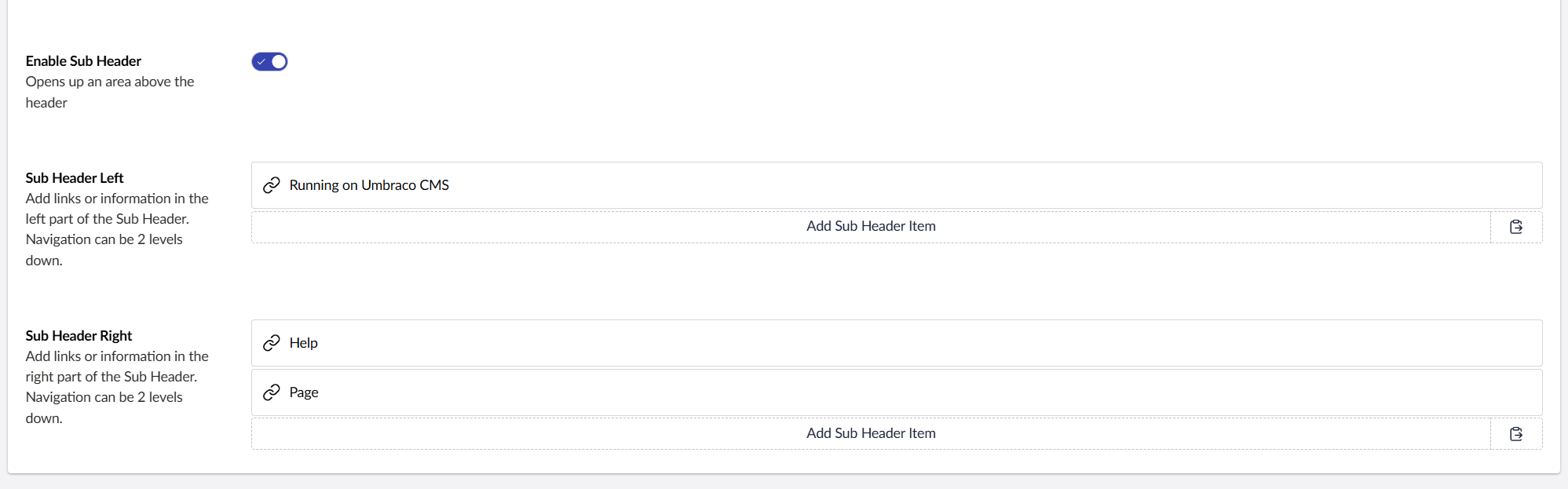
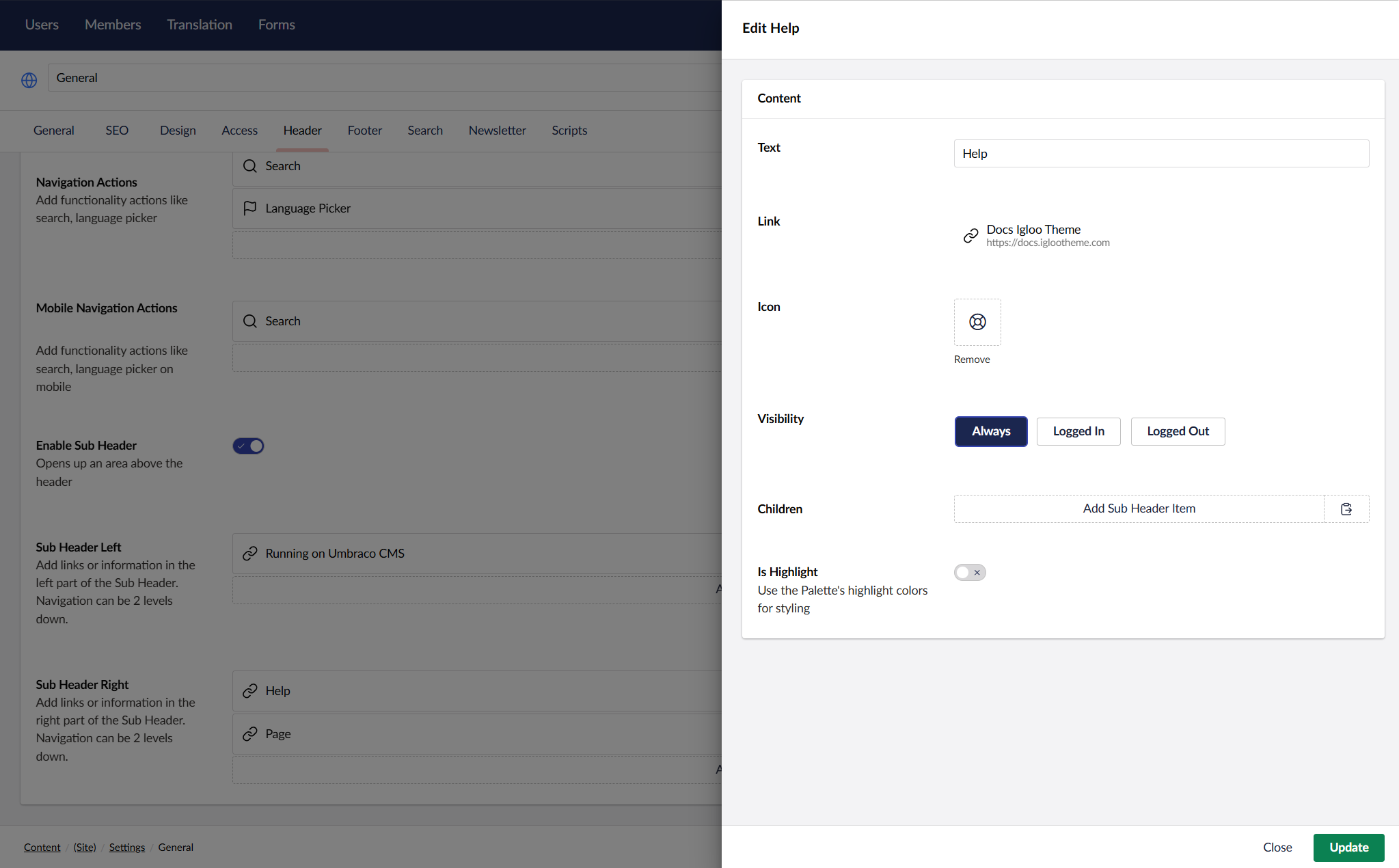
The sub header can be activated on Header section. Start by checking the Enable Sub Header. You can then add items to the left or right sub header area. You can add icons and set if to use the Palette's Highlight color styles. Link is optional but only links will be added to the mobile navigation where the sub header is hidden. You can nest items to create dropdown list just like the main navigation.

Search
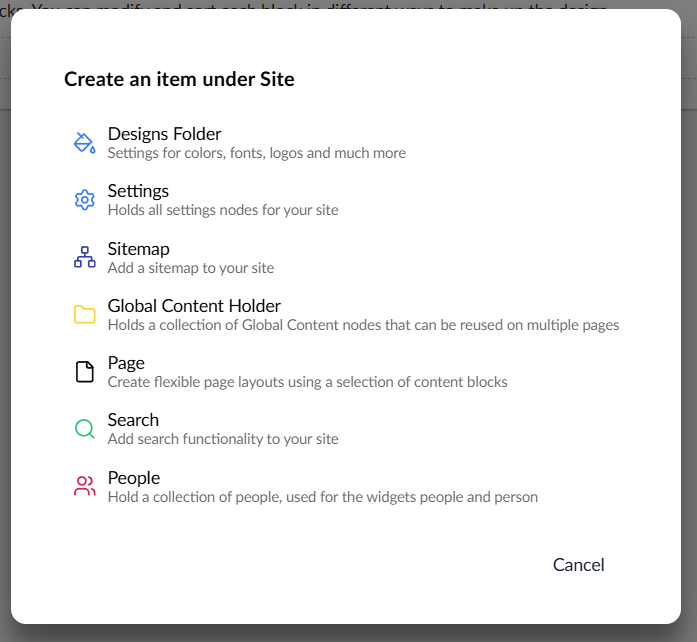
To add the search button to your header simply create the Search node under your site. Make sure to check the Hide in Navigation option on the Search node, this will only display the search icon. The search is included when you install Igloo, if you want to remove the search just delete the Search node.
Header
The header has its own section in the design node, there you can select navigation position, logo padding and more. See Theme customization for more info.
Hide Header
You can hide the header on a specific page by going to the page settings section and checking the Hide Header option.

Transparent Header
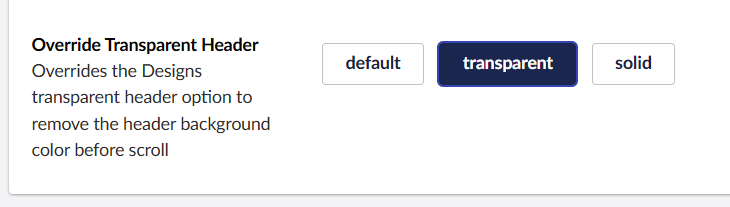
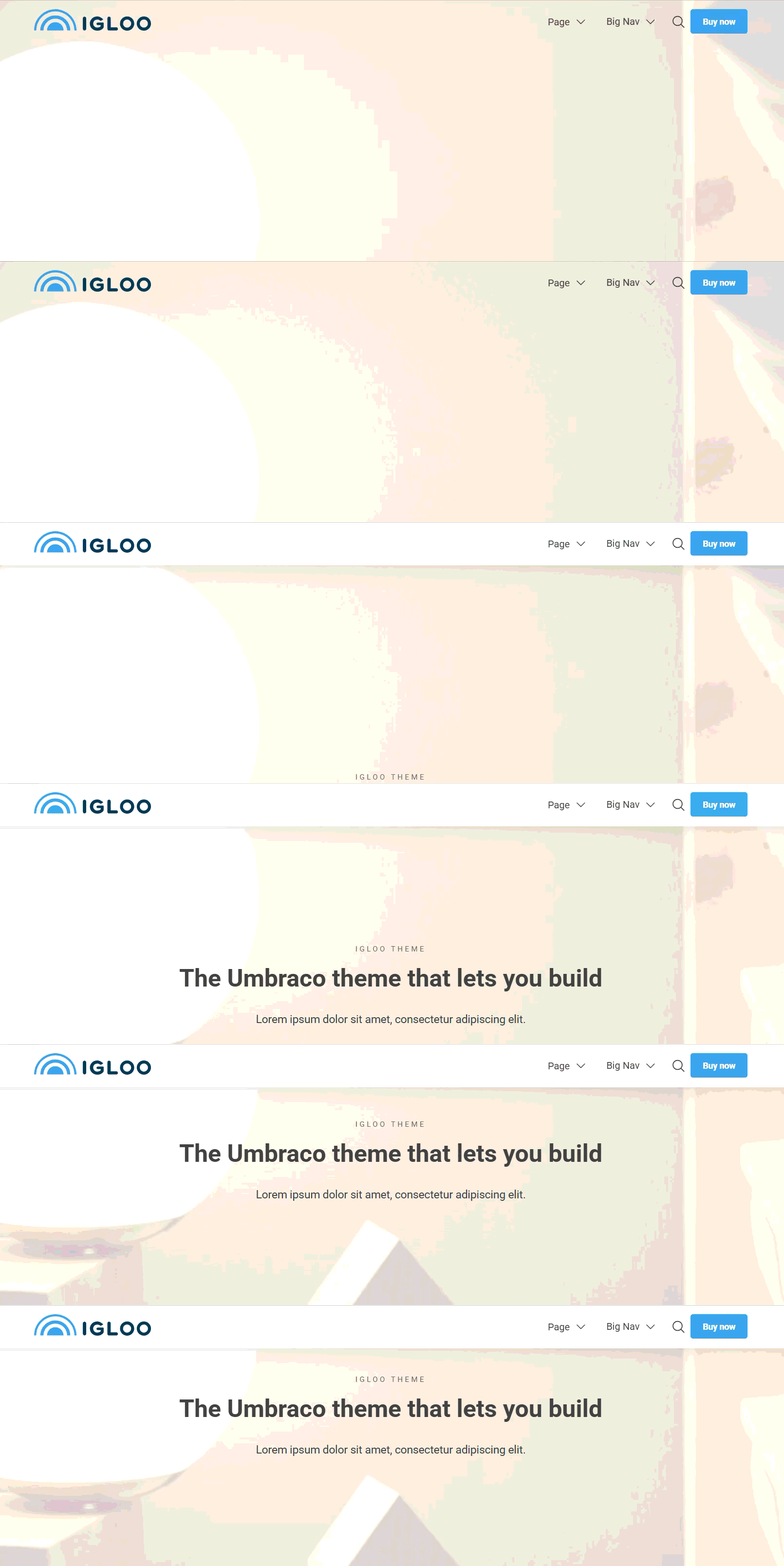
This option will present the header with a transparent background when the page first loads, when scrolling down the header background will be filled in. This settings looks great with the Hero widget. You can also select the color for the transparent header to get the best contrast with your first widget. To activate the transparent header on a page go down to the settings section for that page. Enable the transparent header and select a color.